 Maloomati
Want to delete a contact from WhatsApp? WhatsApp does not have a direct “delete contact” button inside the app. You need to remove the contact from your phone’s address book, and it will automatically disappear from WhatsApp.
This guide shows you exactly how to do it — step by step, with images — on both Android and iPhone.
Quick Answer: How to Delete a WhatsApp Contact
- Android: Open the contact’s chat → Tap name → Three-dot menu (⋮) → “View in address book” → Delete contact
- iPhone: Open the contact’s chat → Tap name → Edit → Scroll down → “Delete Contact”
- Important: WhatsApp does not have a built-in delete button — you must remove the contact from your phone’s address book.
Table of Contents
How to Delete a Contact from WhatsApp (Android)
Follow these 5 simple steps to remove a contact from WhatsApp on any Android phone (Samsung, Xiaomi, Oppo, Vivo, Infinix, etc.).
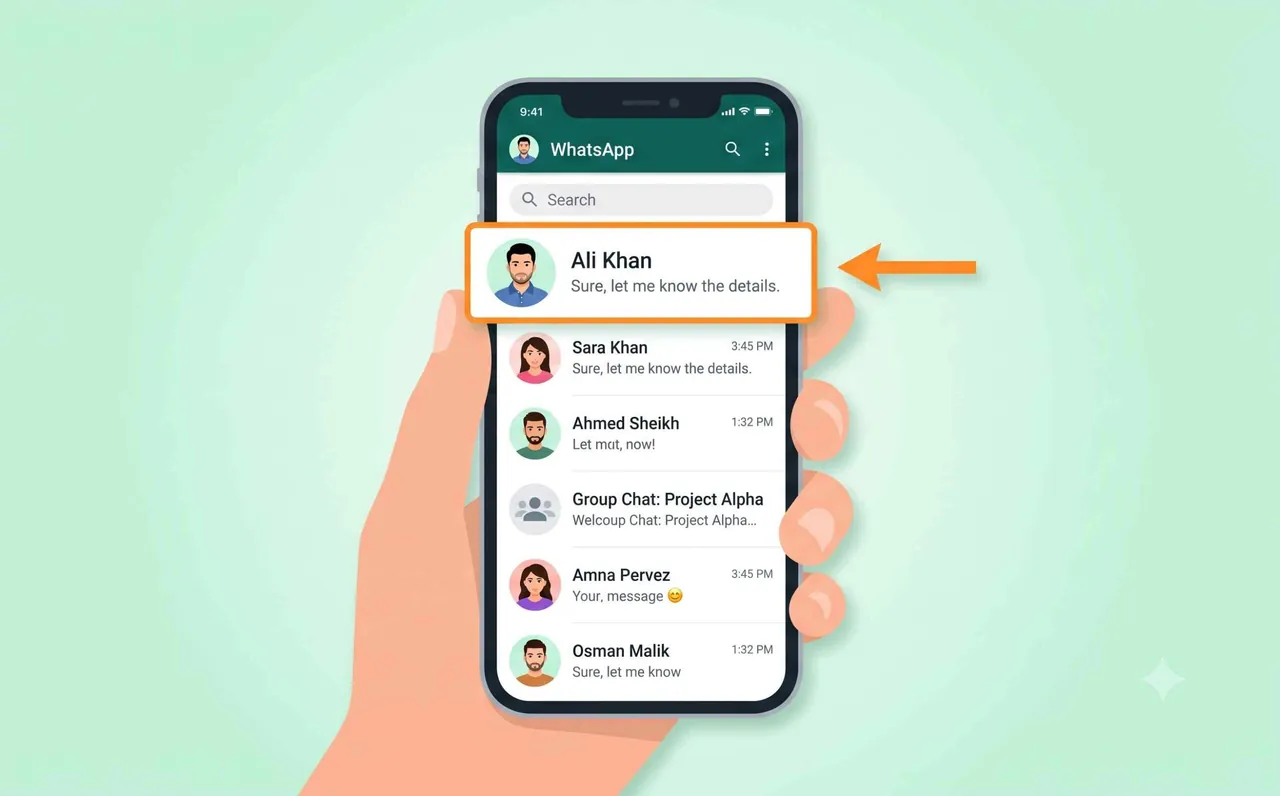
Step 1: Open the Contact’s Chat
Open WhatsApp and go to the Chats tab. Find the contact you want to delete and tap on their chat to open it.
Tip: If you don’t have a chat with this contact, tap the New Chat icon (message bubble) at the bottom right, then search for the contact name.
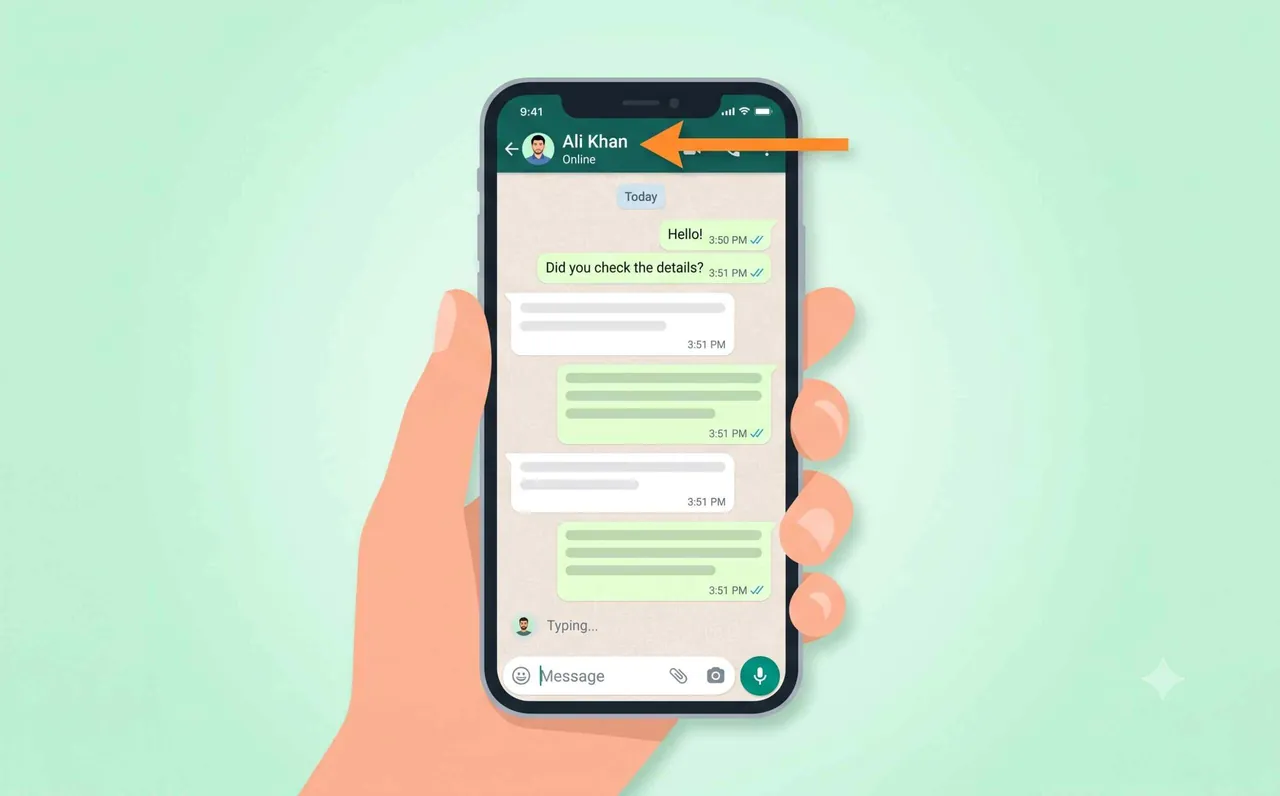
Step 2: Tap the Contact Name at the Top
Once the chat is open, tap the contact’s name at the top of the screen. This will open their Contact Info page.
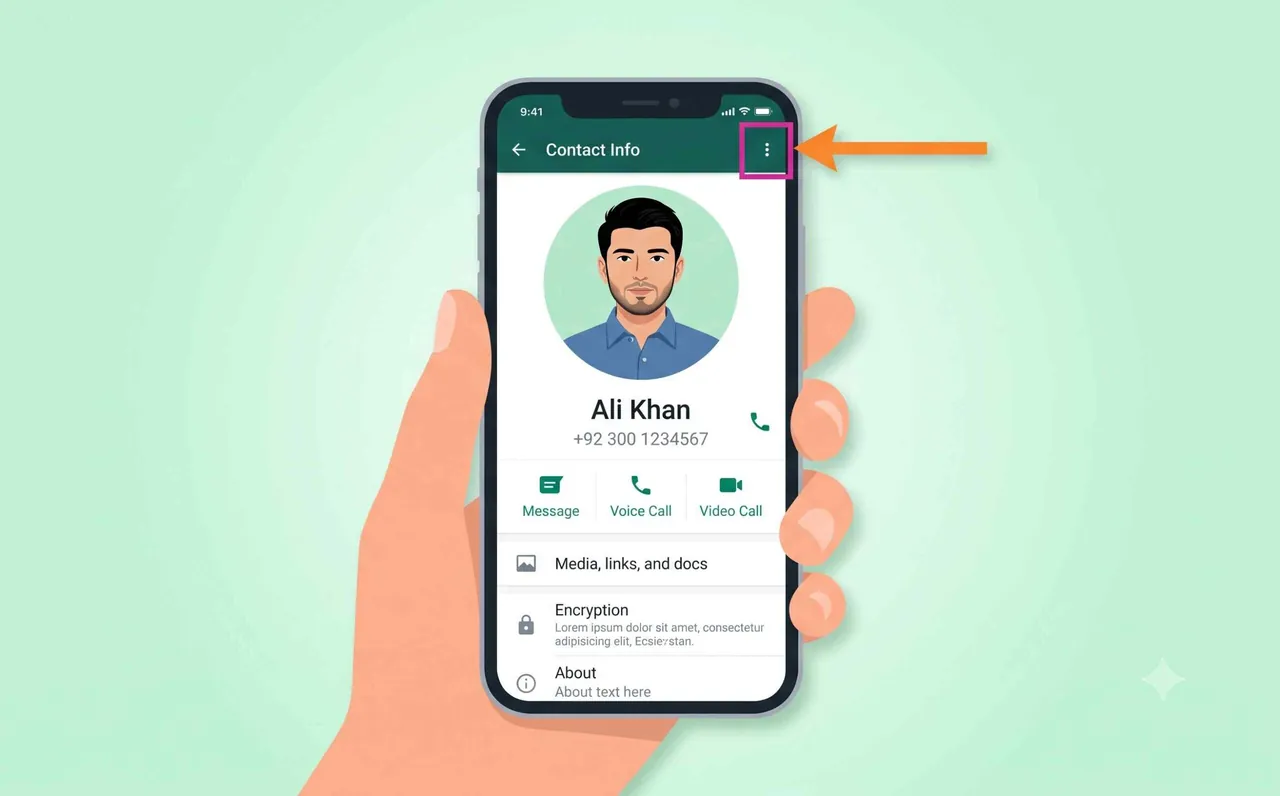
Step 3: Tap the Three-Dot Menu (⋮)
On the Contact Info screen, look at the top-right corner. You will see a three-dot menu icon (⋮). Tap on it.
Step 4: Select “View in Address Book”
A dropdown menu will appear. Tap on “View in address book”. This will open the contact in your phone’s Contacts app.
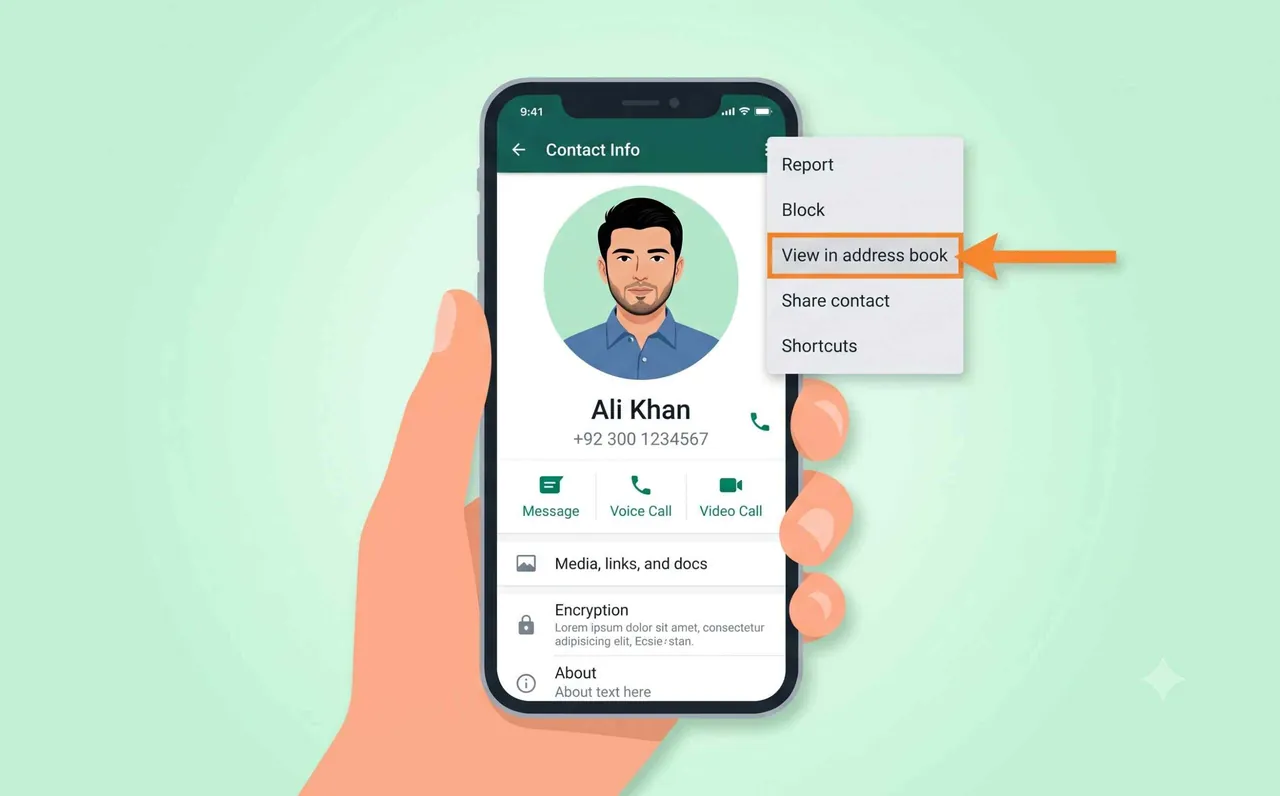
Step 5: Delete the Contact
In your phone’s Contacts app, tap the three-dot menu or “Delete” button. Confirm the deletion when prompted. The contact is now permanently removed from your phone and WhatsApp.
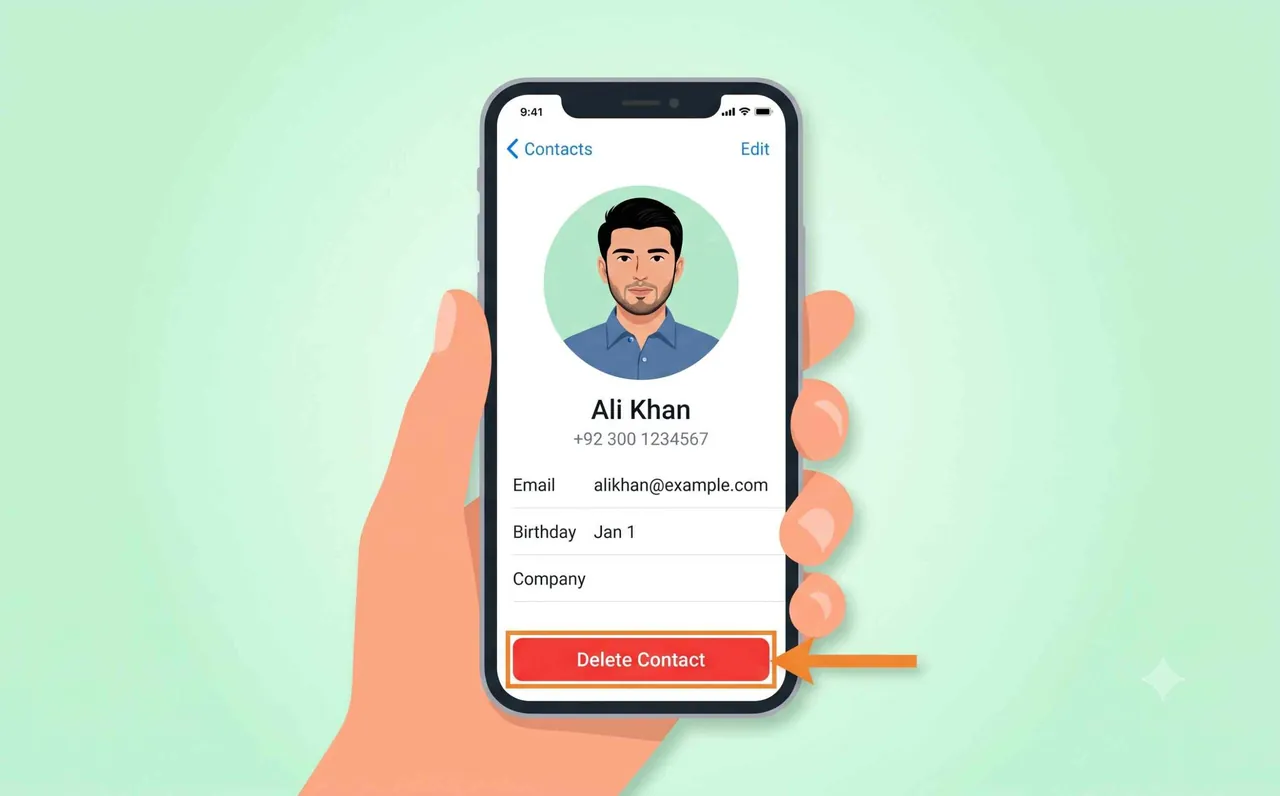
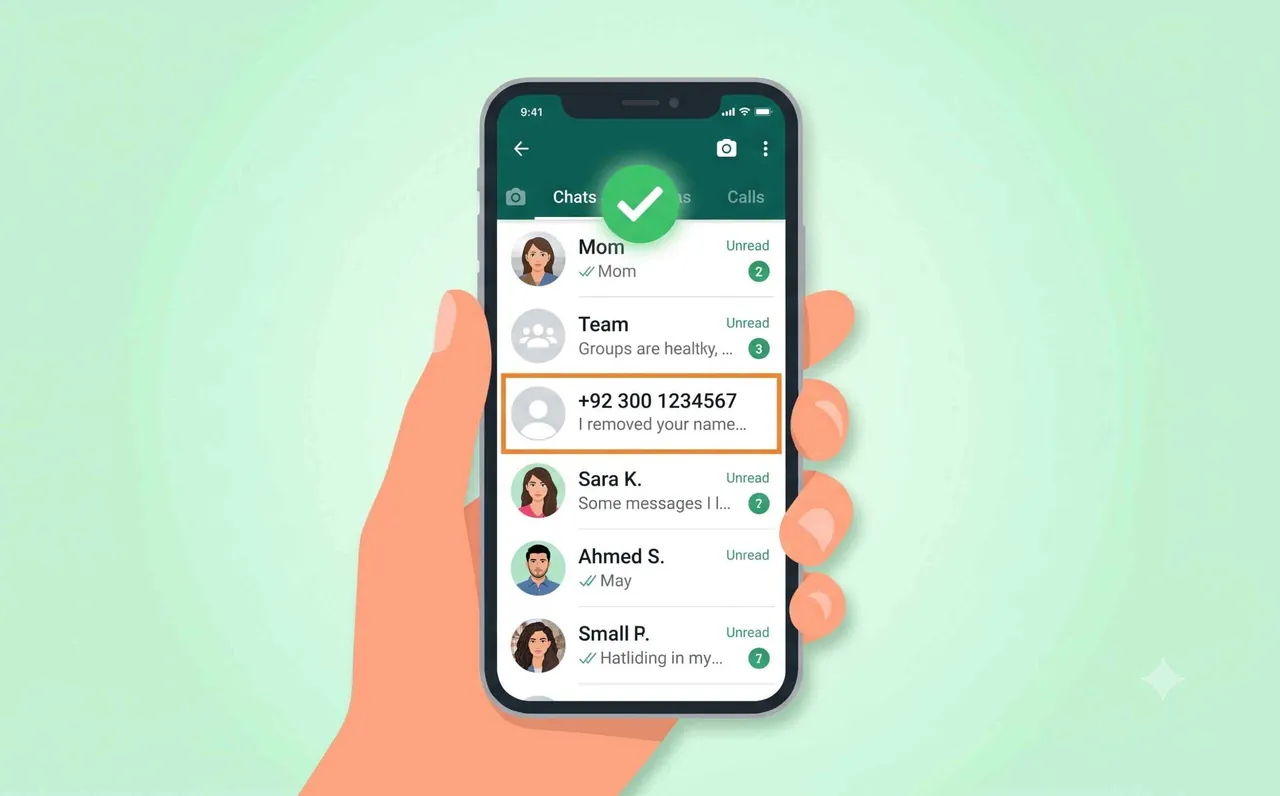
Result: Contact Deleted Successfully
Go back to WhatsApp. The contact’s name will now show as a phone number instead of their name. This confirms the contact has been deleted.
How to Delete a Contact from WhatsApp (iPhone)
The process on iPhone is almost the same, with one small difference:
- Open the contact’s chat in WhatsApp
- Tap the contact name at the top
- Tap “Edit” in the top-right corner
- Scroll down and tap “Delete Contact” (in red)
- Confirm by tapping “Delete Contact” again
Note: On iPhone, you can delete the contact directly from WhatsApp’s contact info screen — no need to open the phone’s Contacts app separately.
What Happens After You Delete a WhatsApp Contact?
Here is what changes after you delete a contact from WhatsApp:
| What Changes | Details |
|---|---|
| Contact name | Shows as phone number (e.g., +92 300 1234567) instead of name |
| Old chats | All previous messages remain — they are not deleted |
| Profile photo | You can still see their profile photo |
| They can still message you | Deleting a contact does not block them |
| Group chats | They remain in any shared groups |
Delete vs Block vs Remove — What’s the Difference?
| Action | Can They Message You? | Can They See Your Status? | Chat History Kept? |
|---|---|---|---|
| Delete Contact | Yes | Depends on privacy settings | Yes |
| Block Contact | No | No | Yes |
| Delete Chat | Yes | Yes | No |
If you want to completely stop someone from contacting you, you should block them first and then delete the contact.
How to Block and Then Delete a Contact
- Open the contact’s chat
- Tap the contact name at the top
- Scroll down and tap “Block”
- Then follow the 5 steps above to delete the contact
Tidying up your other apps as well? See our guide on how to delete your Instagram account permanently, including the difference between deactivating and permanently deleting.
Frequently Asked Questions (FAQs)
Can I delete a WhatsApp contact without deleting from phone?
No. WhatsApp uses your phone’s contact list. If you delete a contact from WhatsApp, it gets deleted from your phone too. There is no way to delete from WhatsApp only.
Will the other person know I deleted them?
No. WhatsApp does not send any notification when you delete a contact. They will not know unless they check your “last seen” or profile photo visibility (depending on your privacy settings).
Can I re-add a deleted contact?
Yes. Simply save their phone number in your phone’s Contacts app again, and they will reappear in WhatsApp with their name.
Does deleting a contact delete our chat history?
No. Deleting a contact does not delete your chat history. All old messages remain in the chat. To delete the chat, you need to separately delete the chat from WhatsApp.
What if I don’t see “View in address book” option?
This can happen if the contact is not saved in your phone. In that case, the number is already not in your contacts — you can simply delete the chat by long-pressing on it in the chat list and tapping the delete icon.
Why does a deleted WhatsApp contact keep coming back?
If a contact reappears after you delete it, your phone is re-syncing it from another linked account — usually your Google account on Android or iCloud on iPhone. Delete the contact from that account too (or turn off contact sync for it), then reopen WhatsApp and the contact will stay gone.
Can I recover a deleted WhatsApp contact?
WhatsApp itself does not store a recycle bin for contacts, but the number is not lost. If you deleted the contact from a synced Google or iCloud account, restore it from that account’s contact history. Otherwise, simply save the number again in your phone’s address book and it will reappear in WhatsApp.
How do I delete multiple WhatsApp contacts at once?
WhatsApp has no bulk-delete option inside the app. To remove several contacts quickly, open your phone’s Contacts app (or Google/iCloud contacts on the web), select the numbers you want to remove, and delete them there. They disappear from WhatsApp on the next sync.